Send Notification Task
Since Jmix 3.1
Overview
A Send Notification task sends in-app and email notifications through the Notifications add-on. When the process reaches the task, it sends all its notifications, and then the process continues.
This is a custom task developed by Jmix, not a BPMN standard task. To add it, click the Change type  icon of a task and select Send Notification Task.
To send notifications on events of a user task, such as task assignment, use user task notifications instead.
A Send Notification task is visualized as a rounded rectangle with a small bell icon in the top-left corner.
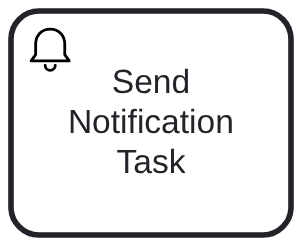
A Send Notification task is a service task with the jmix-send-notification type. Its notifications are jmix:notification extension elements.
<serviceTask id="notify-manager" name="Notify manager" flowable:type="jmix-send-notification">
  <extensionElements>
    <jmix:notification recipientType="expression" recipientExpression="${order.manager}"
                       channels="in-app,email" contentType="plain">
      <jmix:subject>New order ${order.number}</jmix:subject>
      <jmix:body>Order ${order.number} is waiting for your approval.</jmix:body>
    </jmix:notification>
  </extensionElements>
</serviceTask>
Properties
In the BPMN modeler, you can set the following properties of a Send Notification task:
Property |
Description |
Id |
The identifier of the element. It is generated automatically, but you can change it to a more meaningful one to make logs easier to understand. |
Name |
The name of the task, up to 255 characters. Tasks are typically named using a verb + object syntax, such as "Approve Order" or "Send Invoice". |
Notifications |
The notifications that the task sends. See Notifications. |
Execution listeners |
See Execution Listeners. |
Asynchronous execution |
|
Documentation |
A description and additional information about the element. |
The task has no multi-instance properties. To notify several users, use an Expression recipient that returns a collection.
Notifications
The task sends notifications through the Notifications add-on, so the add-on is required. Without it, the modeler shows an error message when you select a Send Notification task, and at runtime the task sends no notifications and the process continues.
Other add-ons enable more options:
-
Email Sending enables the Email channel. See Email Channel.
-
Message Templates enables rendering the body from a template. See Message Templates in Notifications.
To choose a notification type in the modeler, register types as described in Notification Types. To read in-app notifications, recipients need a role described in Security Roles.
Notification Properties
The Notifications section shows a list of notifications. Use the Create, Edit and Remove buttons to manage them. A notification has the following properties:
Property |
Description |
Subject |
The notification subject, required. It can contain expressions. |
Type |
An optional notification type. It sets the icon of the notification in the UI. The list shows the registered types, and you can also enter a type name. |
Recipient |
Who receives the notification, required. See Notification Recipients. |
Recipient expression |
The expression that returns the recipients. Shown when Recipient is Expression. |
Channels |
In-app, Email or both. At least one channel is required, In-app is selected by default. Email is available if the Email Sending add-on is installed. |
Use message template, Message template |
The template that renders the body. Available if the Message Templates add-on is installed. See Message Templates in Notifications. |
Content type |
Plain text or HTML. For HTML, the body editor is a rich text editor. If you switch from HTML to plain text, the modeler asks for confirmation and clears the body. Hidden when a message template is used. |
Body |
The notification text. It can contain expressions. Hidden when a message template is used. |
In XML, each notification is a jmix:notification extension element. Its attributes are recipientType, recipientExpression, channels, type, contentType and templateCode, and its child elements are jmix:subject and jmix:body.
Notification Recipients
| Recipient | XML value | Description |
|---|---|---|
Process initiator |
|
The user stored in the initiator process variable. |
Expression |
|
The result of the Recipient expression. The expression can return a username, a user, or a collection of them, for example, |
Each recipient receives a separate notification, and the subject and body are rendered for this recipient. A user receives one notification even if the expression returns the user several times. A username that doesn’t belong to an existing user is skipped.
Expressions in Notifications
The subject and the body are Flowable expressions, for example, ${order.number} or ${context.recipientUser.username}. Values are inserted with toString(), so call methods to format them, for example, ${order.date.getYear()}.
The context object has the following properties:
| Property | Description |
|---|---|
|
The user who receives this notification. |
|
The id of the process instance. |
|
The id and the name of the process definition. |
|
The id of the execution. |
|
A map of the process variables, for example, |
In the subject and body, context always refers to the notification context, even if the process has a variable with this name.
|
Message Templates in Notifications
If a notification uses a message template, the template renders only the body. The subject is still taken from the Subject property and uses Flowable expressions, while the template uses the FreeMarker syntax.
The template parameters are filled from process variables: the alias of each parameter must match the name of a process variable. For example, if the process has the order variable, add the order parameter and use ${order.number} in the template. The context object described in Expressions in Notifications is available too. The default values of the parameters are not used. If the template refers to a missing variable, the notification is not sent, and the error is written to the log.
Errors in Notifications
Notifications don’t interrupt the process. If an expression fails or a notification can’t be sent, the error is written to the log, and the process continues. Other notifications and other recipients of the same notification are not affected.
In-app notifications are saved in a separate transaction, so they remain even if the process transaction is rolled back later. Emails are sent asynchronously by the Email Sending add-on. A recipient without an email address gets no email, and a warning is written to the log.